Contributing to an AI-assisted design system
How I contributed components to our design system, working close to code, with AI on either side of the handover.
Instead of passing engineering a static mock, I prototyped in code, contributed real components to the design system, and prepared a clean handover. AI sat on both sides of that line: it helped me get from a Figma design into production-ready code, then helped me push the polished components back into Figma.
Identifying a component gap
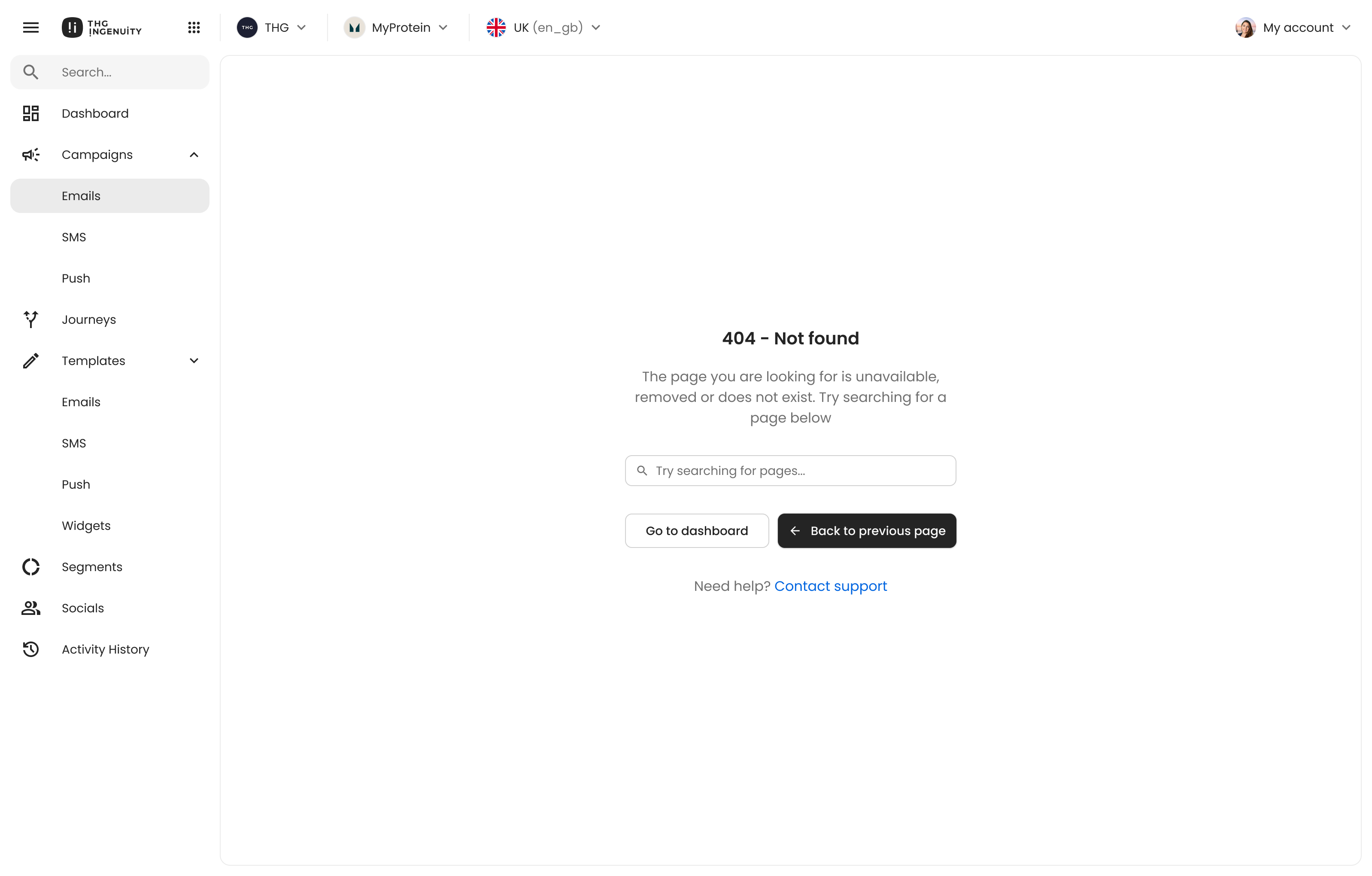
Every component starts with a ticket; this one came from the platform’s “Not Found” page. The acceptance criteria told me exactly what the empty state had to do: give people a way forward instead of a dead end. That shaped both the design and the component’s variants.
- AC1
Search for what they need
The user sees a search bar and can type a query to search for pages or content across the platform.
- AC2
Return to the previous page
A link takes the user back to where they came from.
- AC3
Return to the main dashboard
A link takes the user to the main campaign dashboard.
- AC4
Contact support
A “Contact Support” link takes the user to the appropriate support or help contact page.
In the design system, those four needs map straight onto the Empty component, the search field as an Input Group, and the back, dashboard, and support actions as its buttons and links.
It started in Figma
With the criteria clear, I designed the empty state in Figma. It covered every criterion: the search, the two navigation links, and the route to support.
Into the design system
Next I opened the design system repo and added the Empty component and its stories, with Claude doing the heavy lifting. Depending on the work, I’d sometimes pair with a developer to make sure it matches how the rest of the library is built.
Once the scaffolding existed, I got in and edited, making sure the props actually worked, the styles pulled from the right tokens, and the stories earned their place: meaningful states, not a bloated list. For Empty that was a tight set, each one a real scenario a product team would reach for.
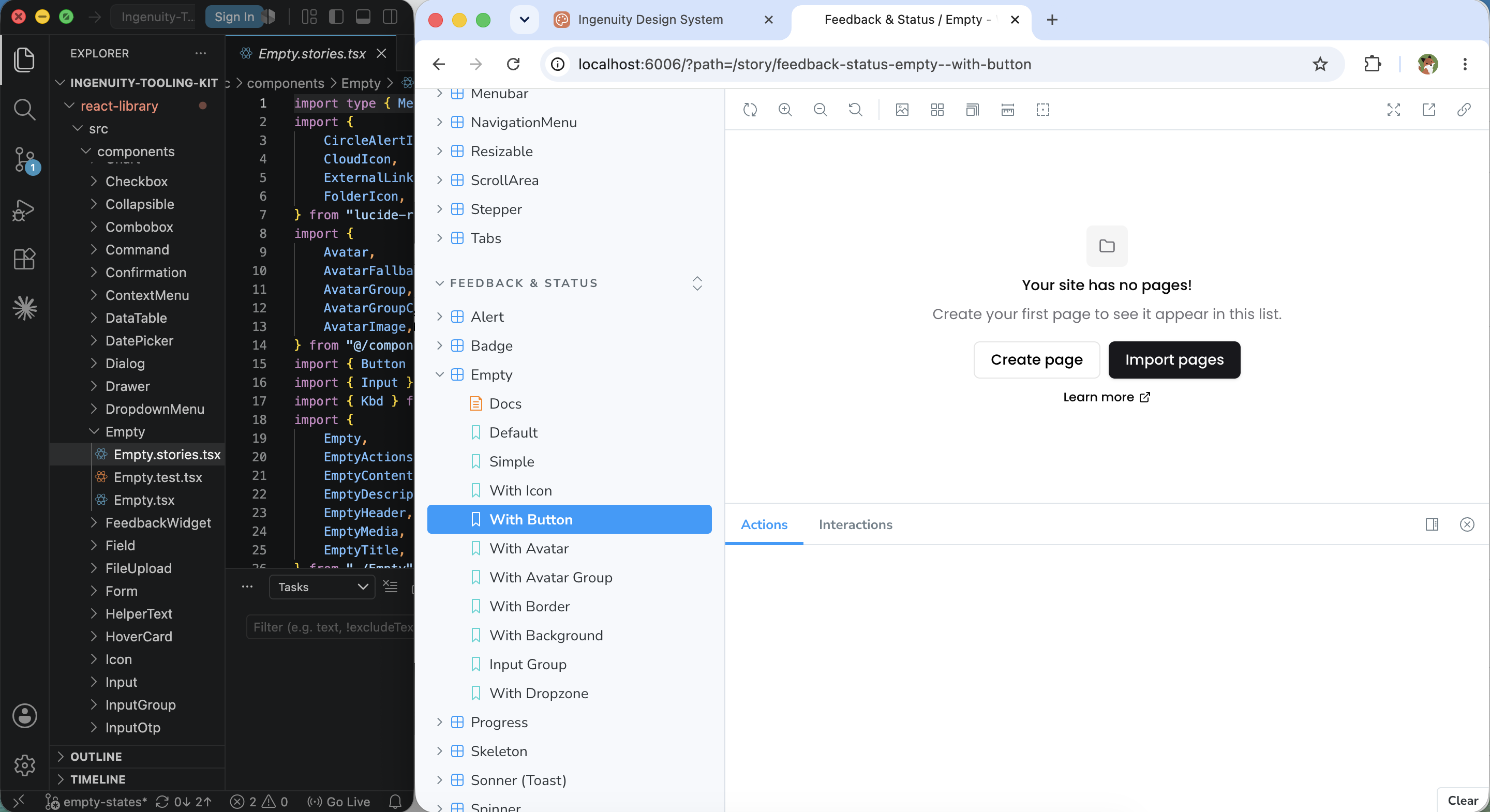
I put the work on a branch and opened a PR for the developers to review. Once the devs, the other designers, and I were happy it was technically sound, it was good to go, and now it was something I could actually prompt against. From there, I can spin up prototypes using tools like Claude Code, v0, or Claude Design.
Closing the loop, back into Figma
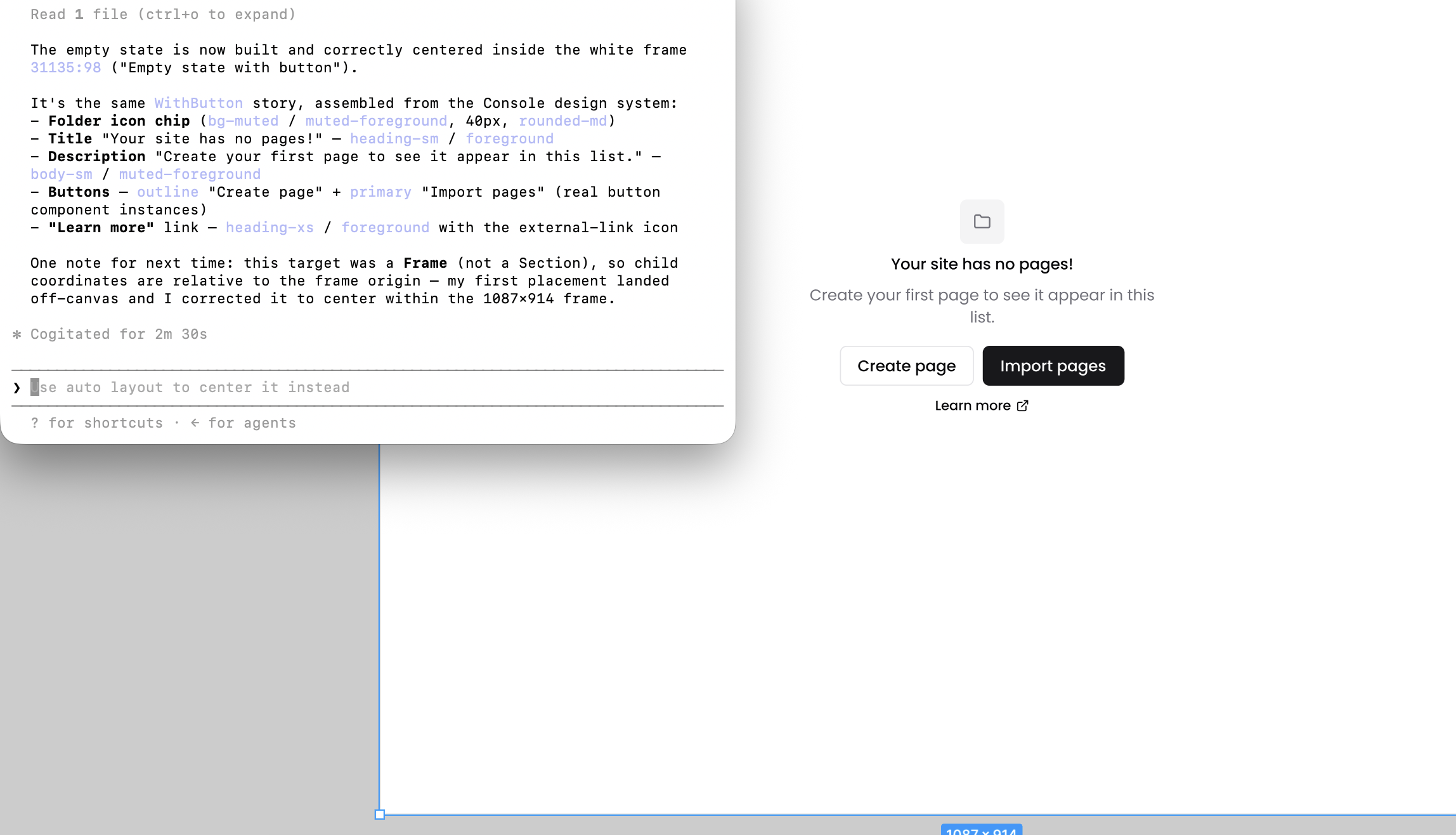
Live in code, the component was already usable. But a few design-ops steps made it better for me and the other designers, and made my own prototyping faster and more accurate. So I went back into Figma and regenerated the component and all its stories using Figma MCP and a skills.md file. The styles applied themselves from the tokens already defined in code, and Figma properties and booleans got me most of the way with how the team would use the variants.
Code Connect closes the loop
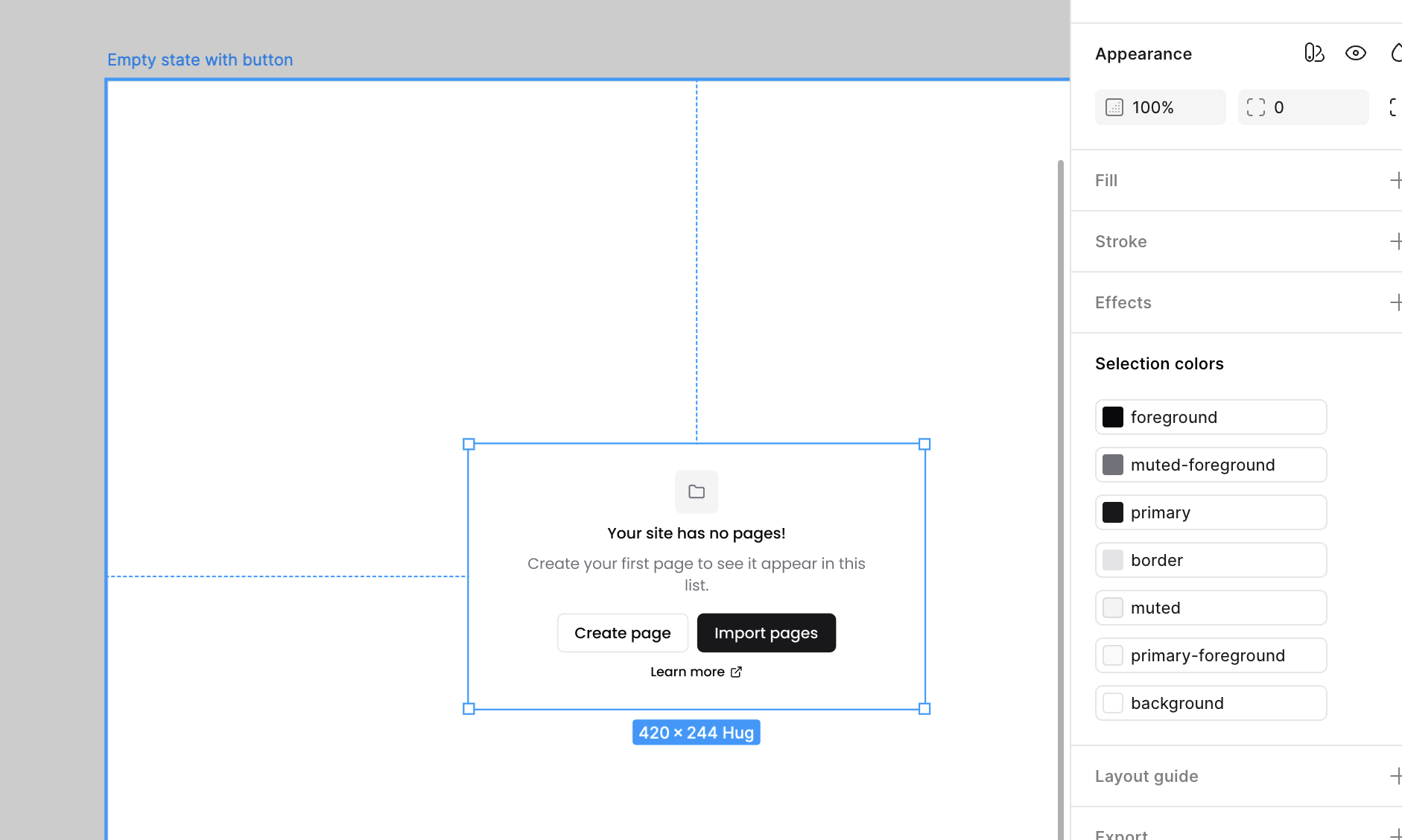
With the component in Figma, I used Figma's Code Connect to sync it back to the design-system repo. That was the part that paid off later: from then on, when our team fed Claude a design through Figma MCP, it generated code that matched to our real components. Figma to code, code to Figma, and back again.
Generation, cuts manual tasks
With Code Connect in place, the component was genuinely wired to the design system, styles like colours connected without manual input.
This case studies aimed to show one of the the many ways im using AI in my design projects.
Thanks for reading
If you’re looking for a product designer who works end-to-end, research, systems, delivery, I’d love to chat.